Background
Deep learning projects rely on a web of dependencies: torch, transformers, cuda, and many more. Version mismatches often lead to obscure compatibility issues, making it hard to faithfully recreate an environment on a different server.
I already had a stable deep learning Conda environment on one server and wanted to migrate it to another. The easiest path was conda-pack, which can bundle a Conda environment into a single archive that works out of the box on another Linux host.
Export
To move the original environment off the source server, export it first.
List all environments
Use
conda env listto see every Conda environment on the machine. Make sure the target isn’t the defaultbase. If you need to movebase, clone it to a new name withconda clonefirst.conda env listActivate the environment to migrate
Suppose the environment name is
torch:conda activate torchInstall
conda-packInstall inside the activated environment:
conda install conda-pack -c conda-forgePack the environment
Run
conda pack -n <env>to generate a tarball. Replace<env>with your environment name, e.g.torch.conda pack -n torchThe command creates
torch.tar.gzin the current directory.
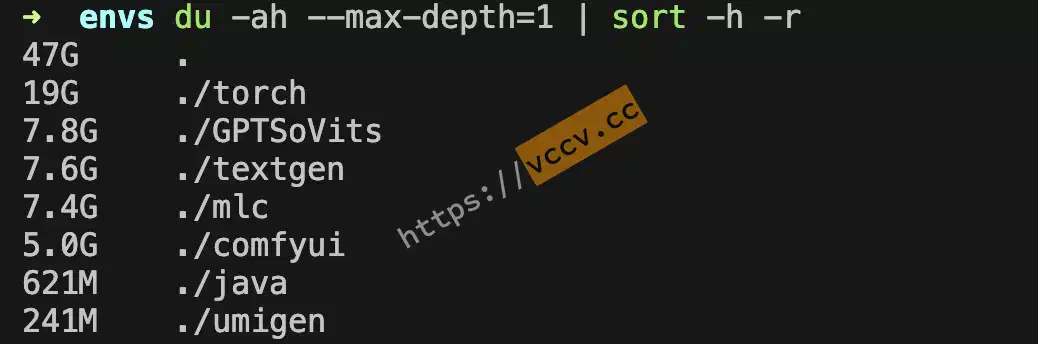
Packing time scales with environment size. My torch env is large, so the job took a while—thankfully there’s a progress bar. The environment consumed ~20GB and the packed file landed just under 10GB.

Import
After packing and downloading the archive, upload it to the target server and unpack it.
Upload the file to the target
Download locally, then upload
Keeps a local backup: download
torch.tar.gzto your laptop, then upload to the target. Use whatever SSH/SFTP tool you like.Use
rsyncdirectlyTransfer straight between servers:
rsync -avz torch.tar.gz user@target_server:/path/to/destination
Restore the environment
Ensure no environment with the same name exists
conda env listIf a duplicate exists, remove it first:
conda env remove -p <env_path>
# or
conda env remove -n <env_name>
Prepare the destination directory
Check where Conda keeps environments, e.g.
/mnt/nfs/yuesir/miniconda3/envs. Create a folder matching the environment name:mkdir /mnt/nfs/yuesir/miniconda3/envs/torch chmod 777 /mnt/nfs/yuesir/miniconda3/envs/torchExtract the archive
tar -xzvf torch.tar.gz -C /mnt/nfs/yuesir/miniconda3/envs/torchActivate the new environment
conda activate torch
Verify
After importing, run a few checks.
List environments
conda env listYou should see the migrated environment in the list.
Activate it
conda activate <env_name>Inspect installed packages
conda listConfirm versions and dependencies look right.
Extra
For deep learning workloads (e.g., PyTorch) that depend on specific driver versions, verify CUDA driver compatibility between the two servers. CUDA drivers are backward compatible—if they don’t match, either upgrade the target’s driver (root required) or downgrade PyTorch (risky because of dependency complexity). In tricky cases, a clean install might be safer.
For choosing CUDA/PyTorch combos, see my earlier post: