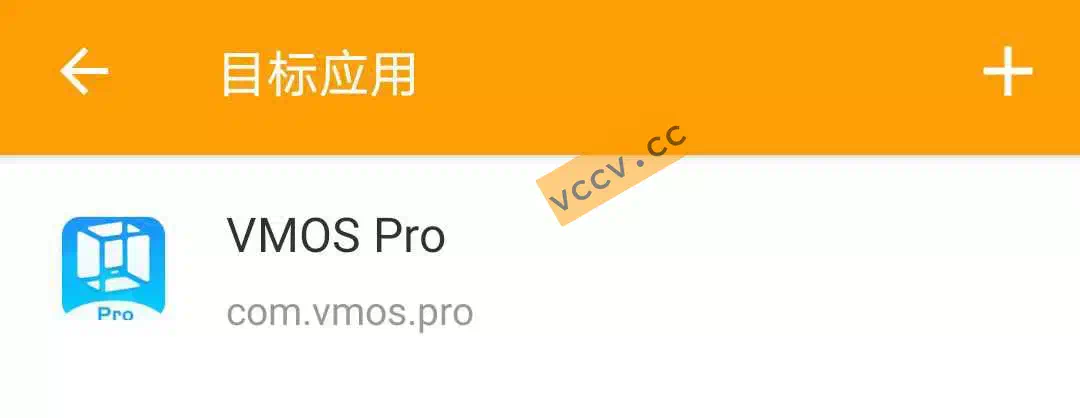
My notes from testing packet capture for Kuaishou Speed Edition at the time, with two Android setups using BlackBox and VMOS Pro. I have kept the software preparation, virtual machine setup, and easily missed details in separate sections so I can find them again later. The iOS section only records the device and tools I used; the detailed walkthrough is still unfinished.
If you’ve never registered Kuaishou Speed Edition or never withdrawn cash, first register on a real device and bind WeChat (Settings -> Account & Security -> WeChat) to make withdrawals easier.
If this is a second account and you plan to bind Alipay, also log in on a real device first. Alipay can only be bound during withdrawal, so keep the real-device session logged in. After you capture the packet in a VM (BlackBox or VMOS Pro) and send it to me, I’ll run coins until it’s withdrawable; then you withdraw on the real device via Alipay.
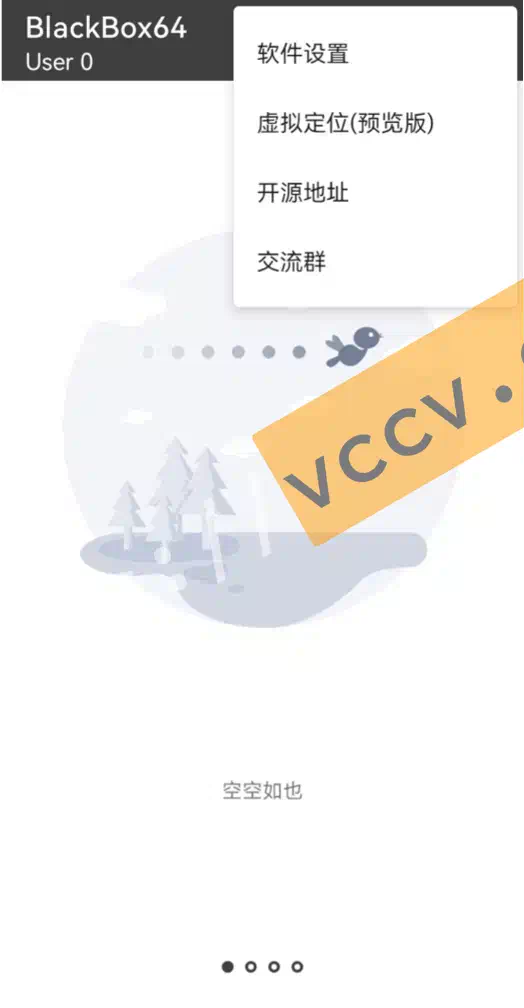
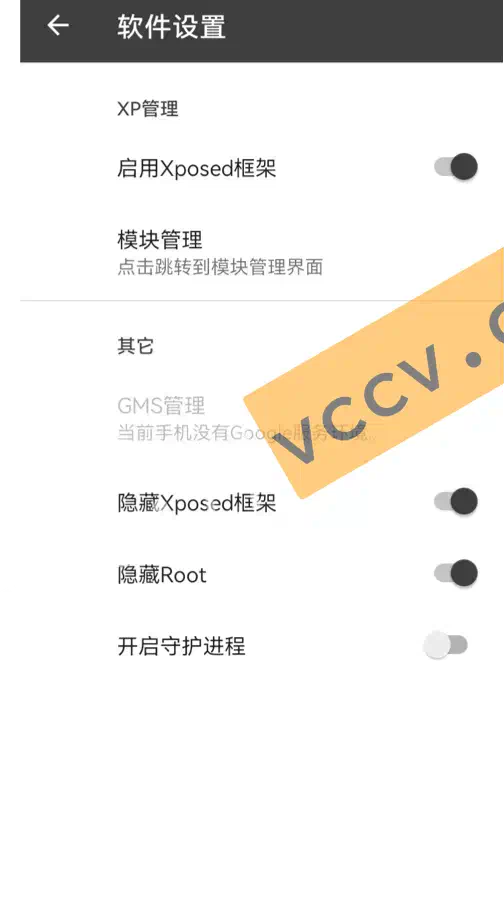
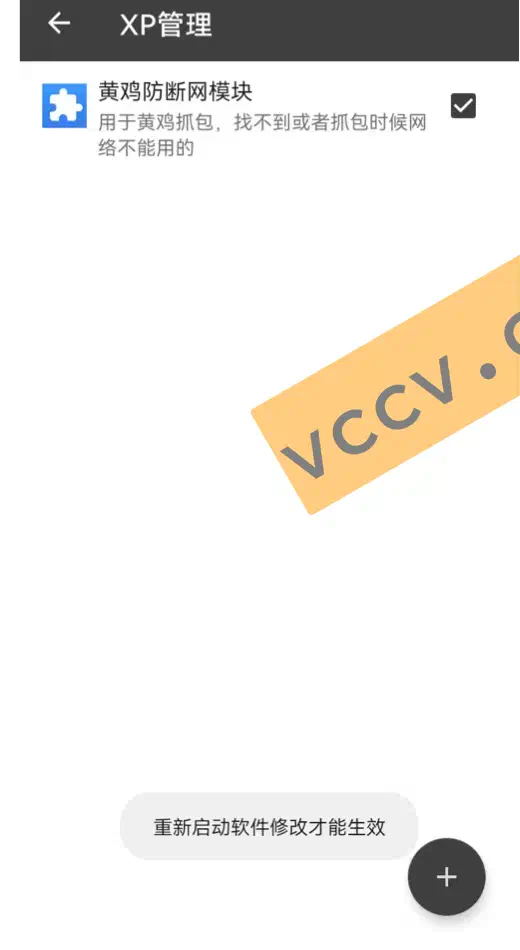
Install BlackBox64 or BlackBox32, HttpCanary, and the “Yellow Chicken anti-disconnect” module.
If your Kuaishou Speed Edition app is 32-bit, use BlackBox32; if 64-bit, use BlackBox64. If you don’t know, install both and see which one can add the app.
In BlackBox, open Kuaishou Speed Edition (the one inside BlackBox, not the real device). Make sure it’s the first launch and you’re logged out. Log in with phone + SMS. After login, go to Settings -> Account & Security -> WeChat to bind WeChat, or wait to bind WeChat/Alipay during withdrawal.
If entering the phone/OTP does nothing, kill BlackBox and retry.
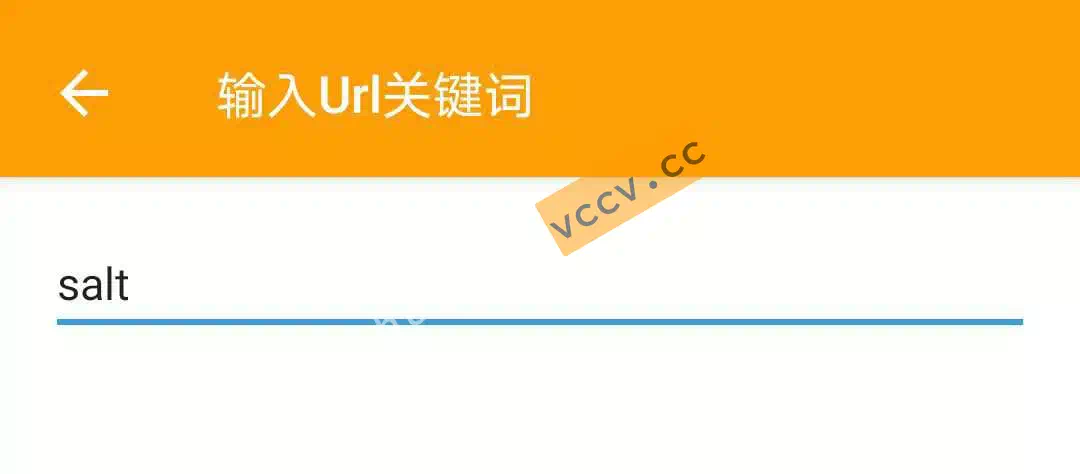
If you capture nothing or can’t pass security checks, uninstall the Kuaishou app inside BlackBox, kill related apps, re-add, start HttpCanary, and log in again.
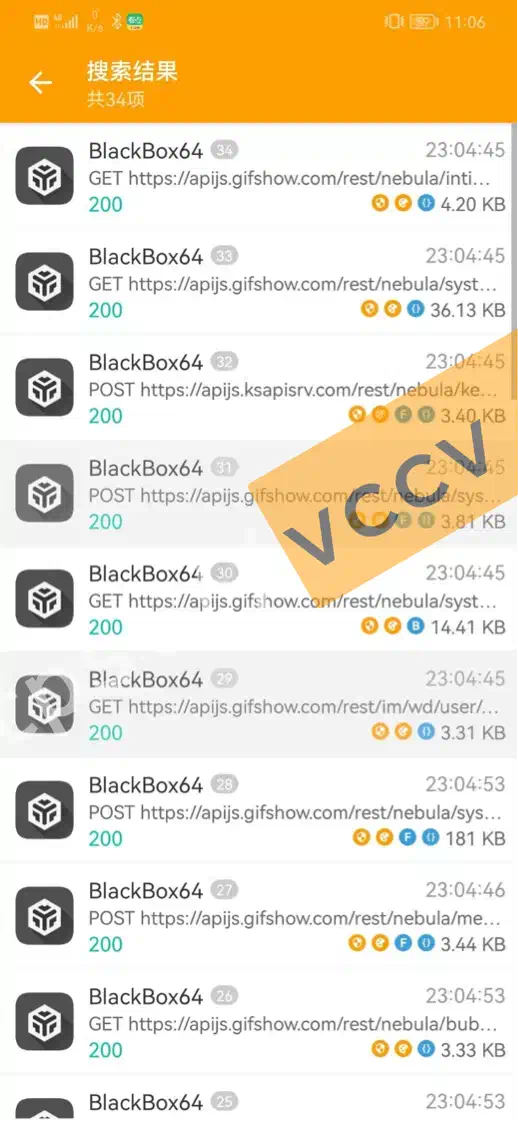
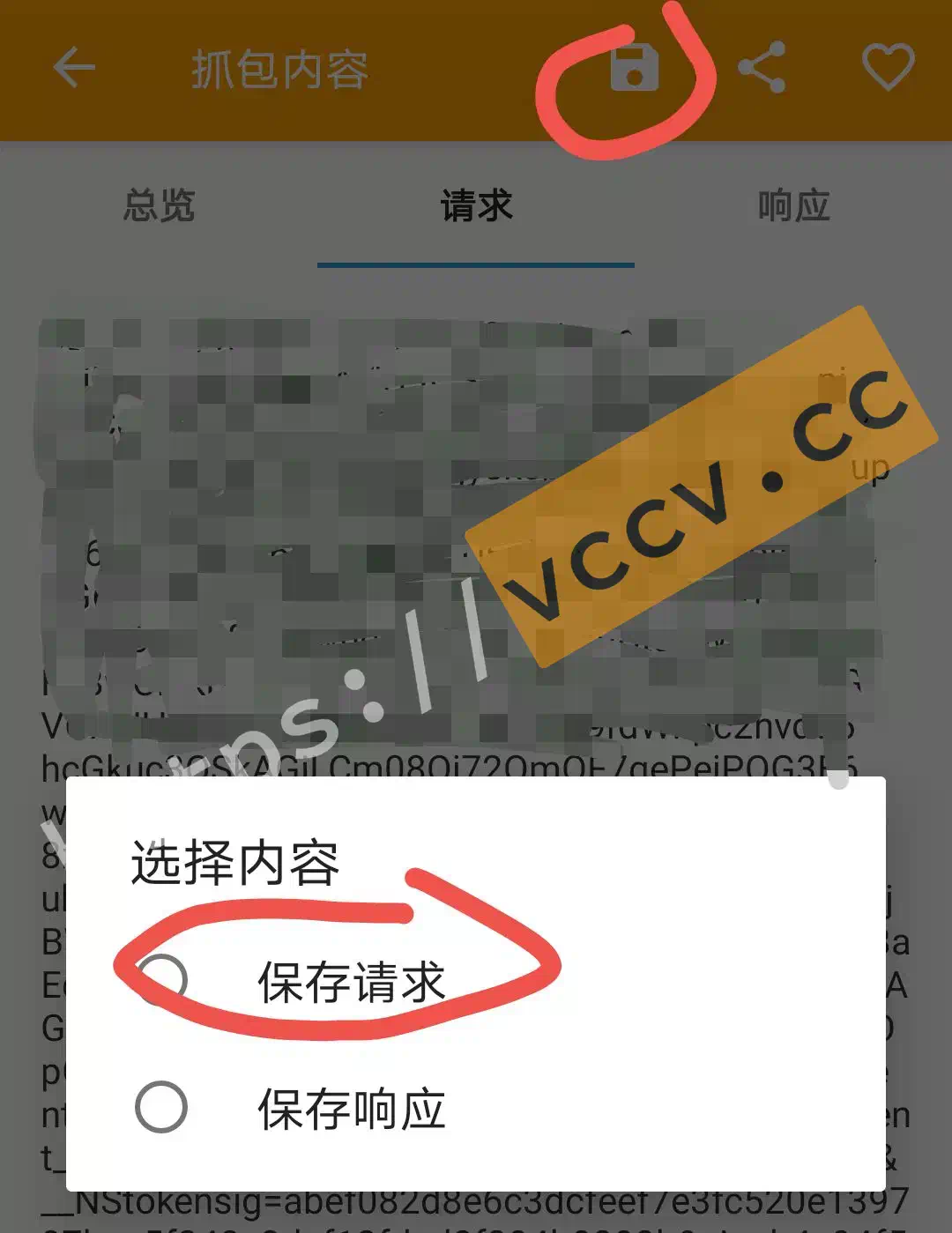
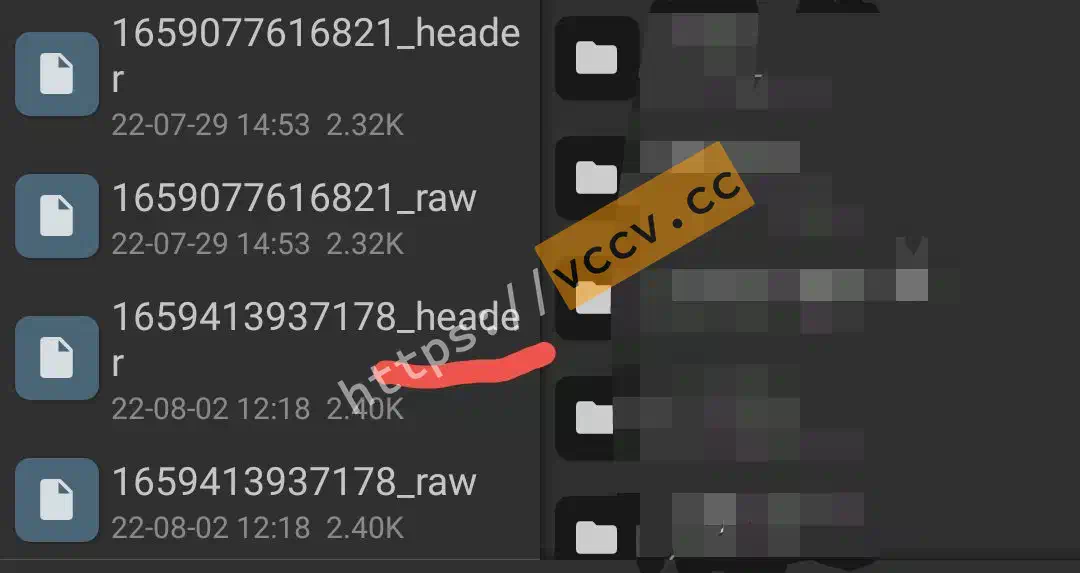
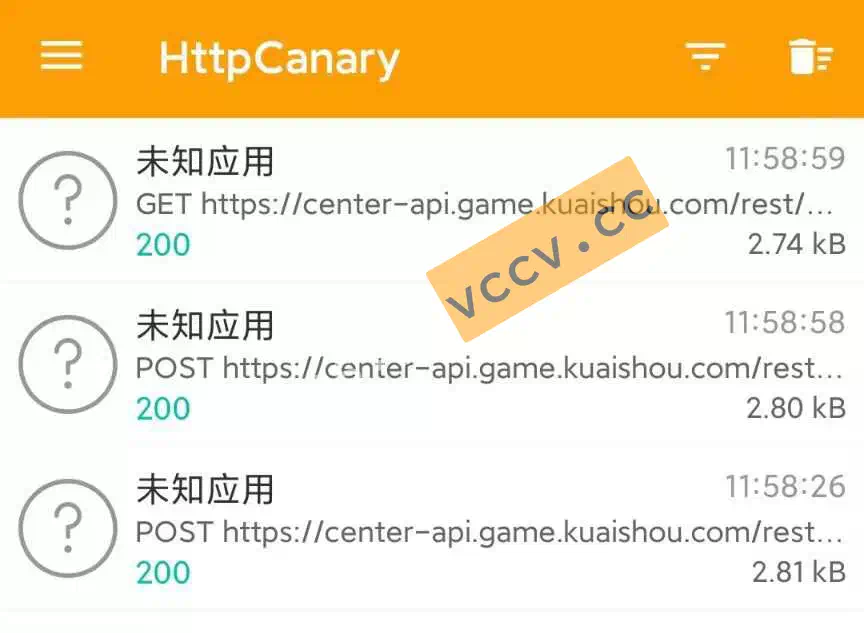
Files are saved under HttpCanary->download. Send the latest file (use a file manager). There may be two files: one ending with header and one with raw. Send the header file.
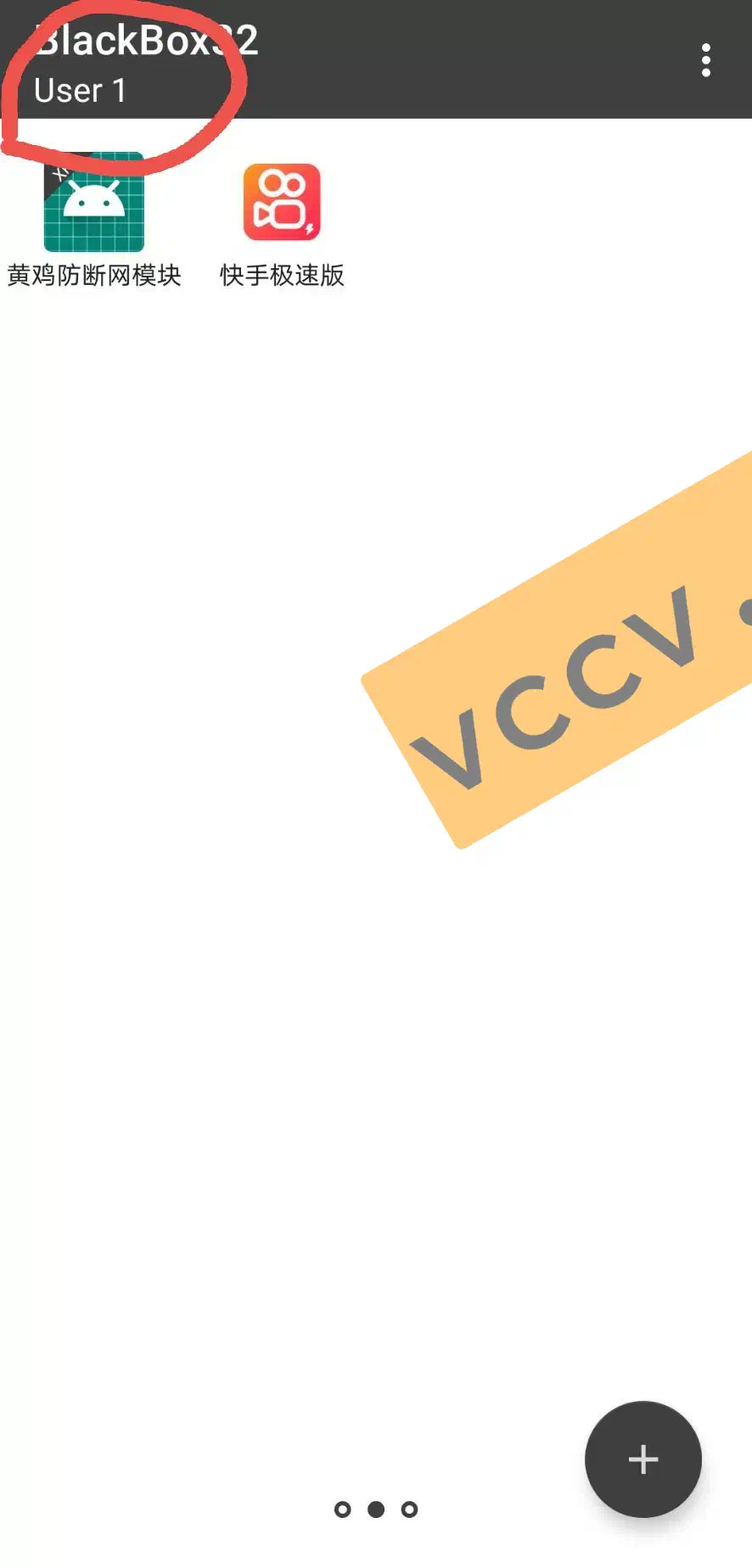
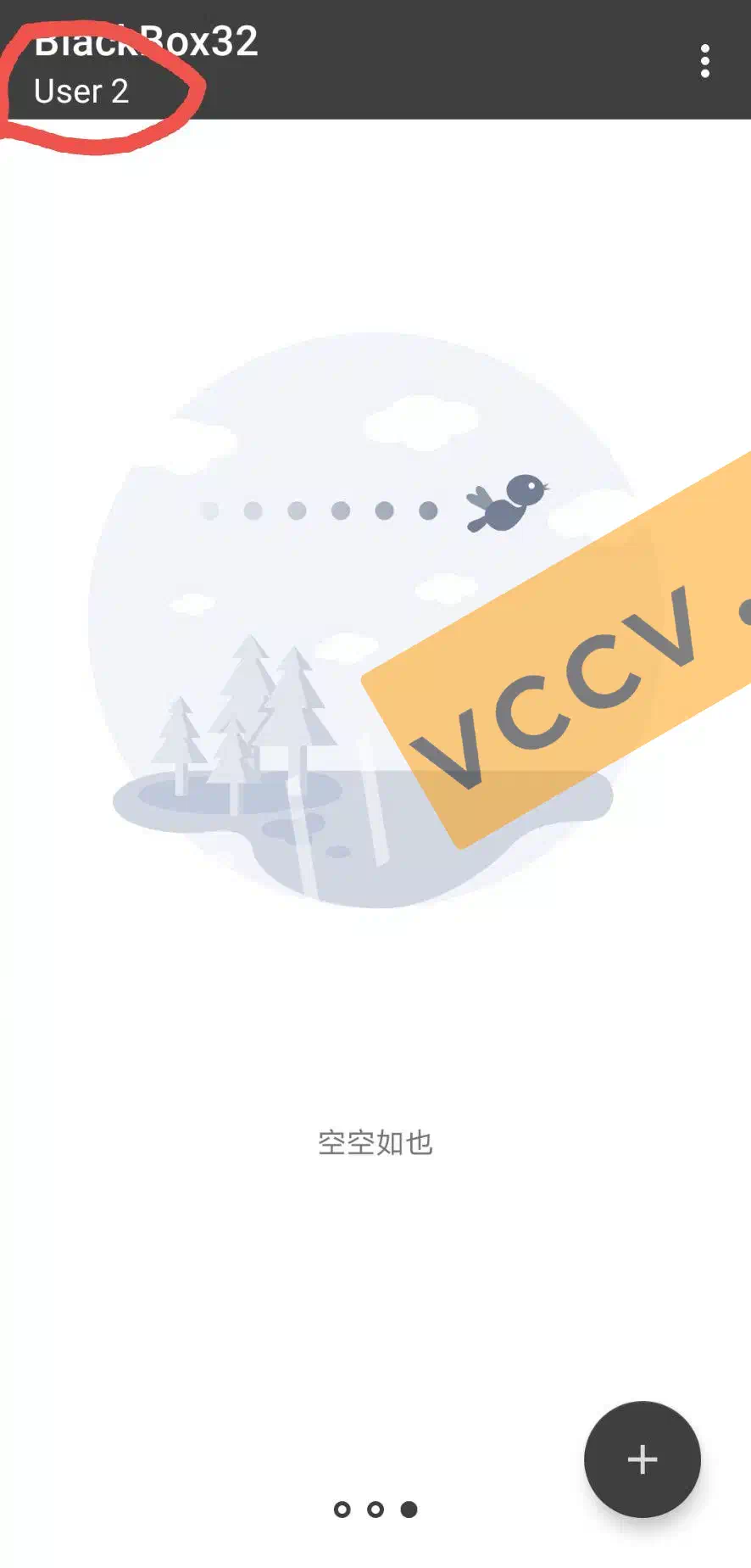
If you need a second account, do not log out the first. Create another virtual space and repeat the steps in BlackBox.
Swipe left on BlackBox home to switch spaces:
Other steps are the same.
Note:
The second account must use a different phone number and withdrawal method. If you only have one WeChat, capture and send the data first; after I process the coins, bind Alipay during withdrawal.
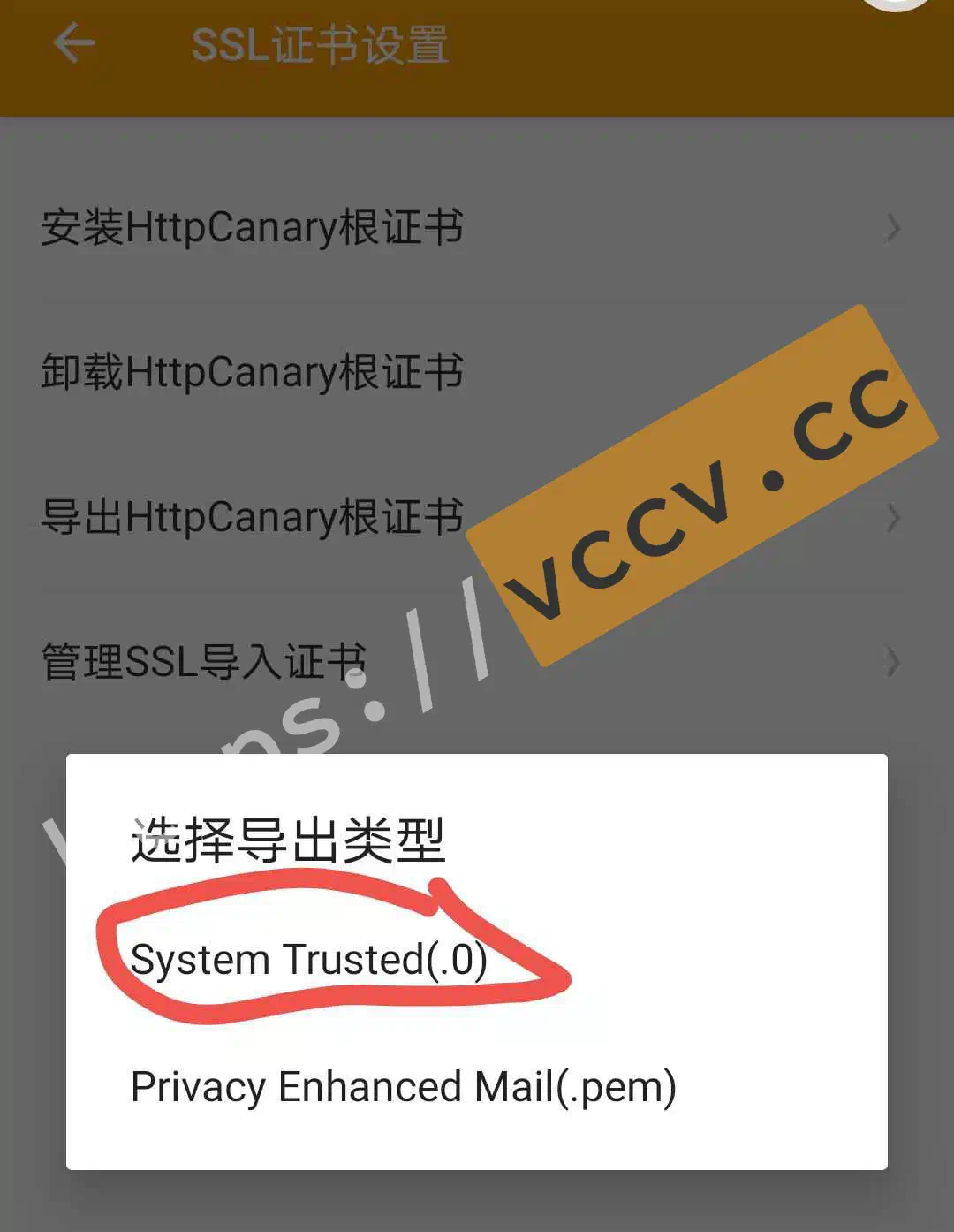
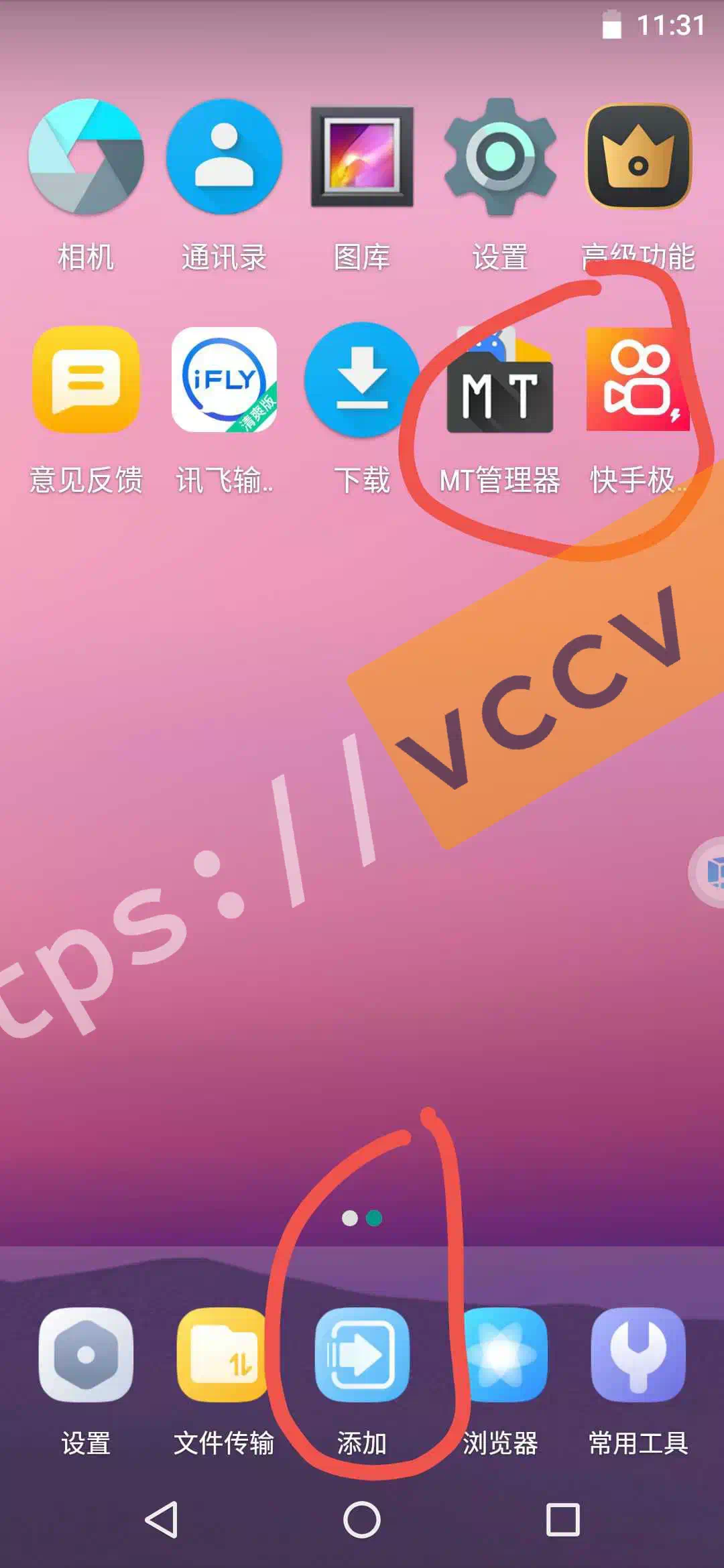
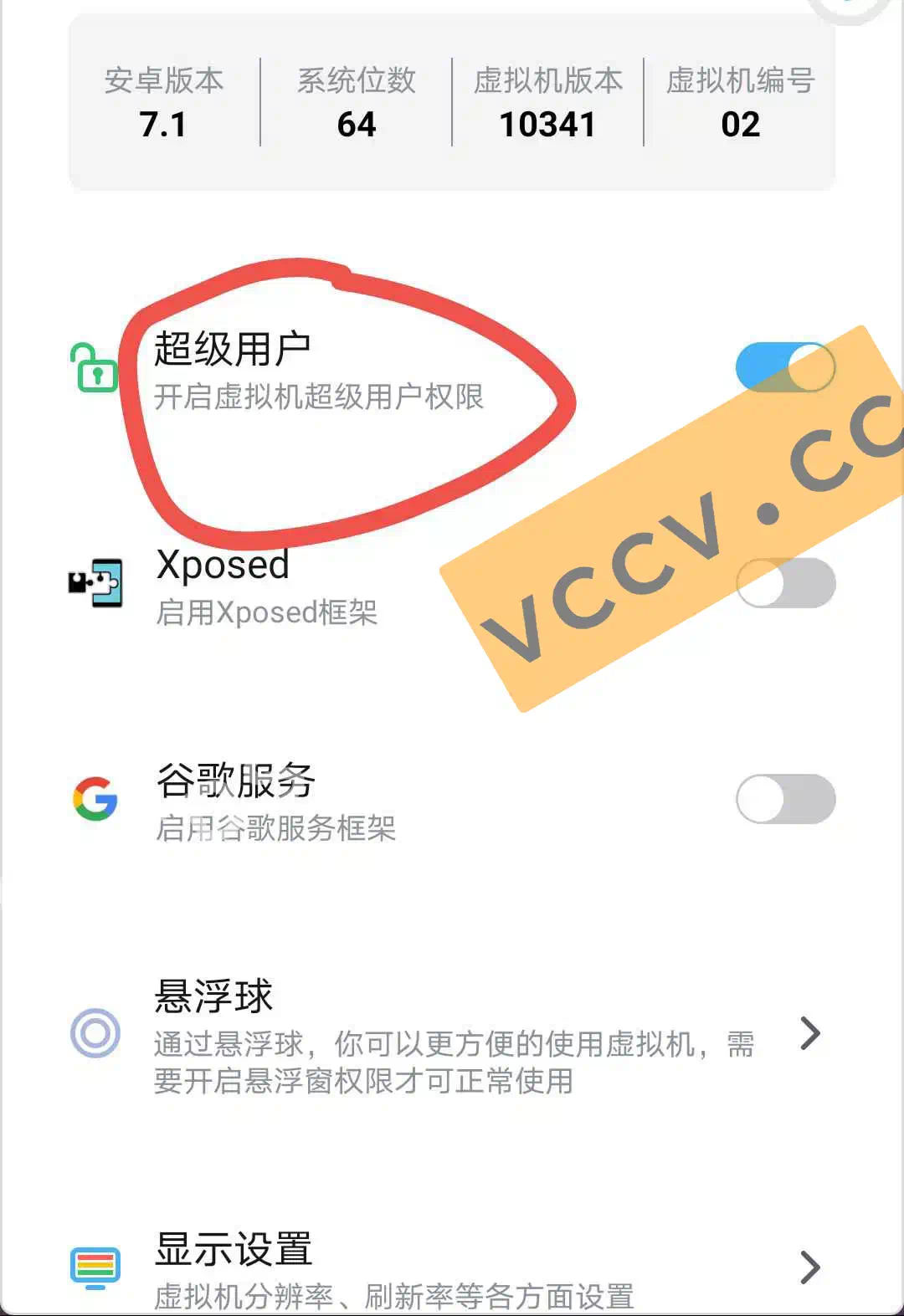
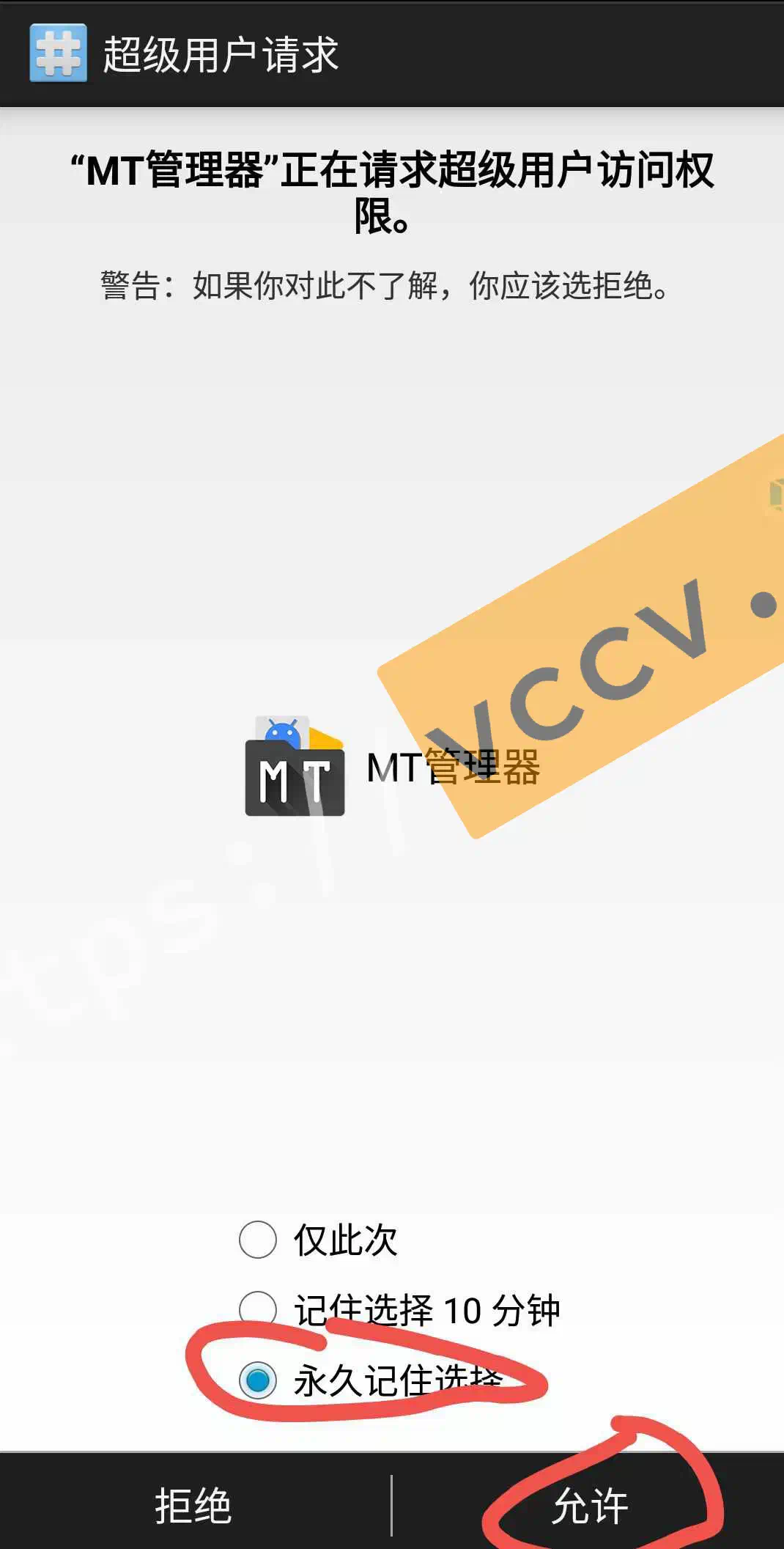
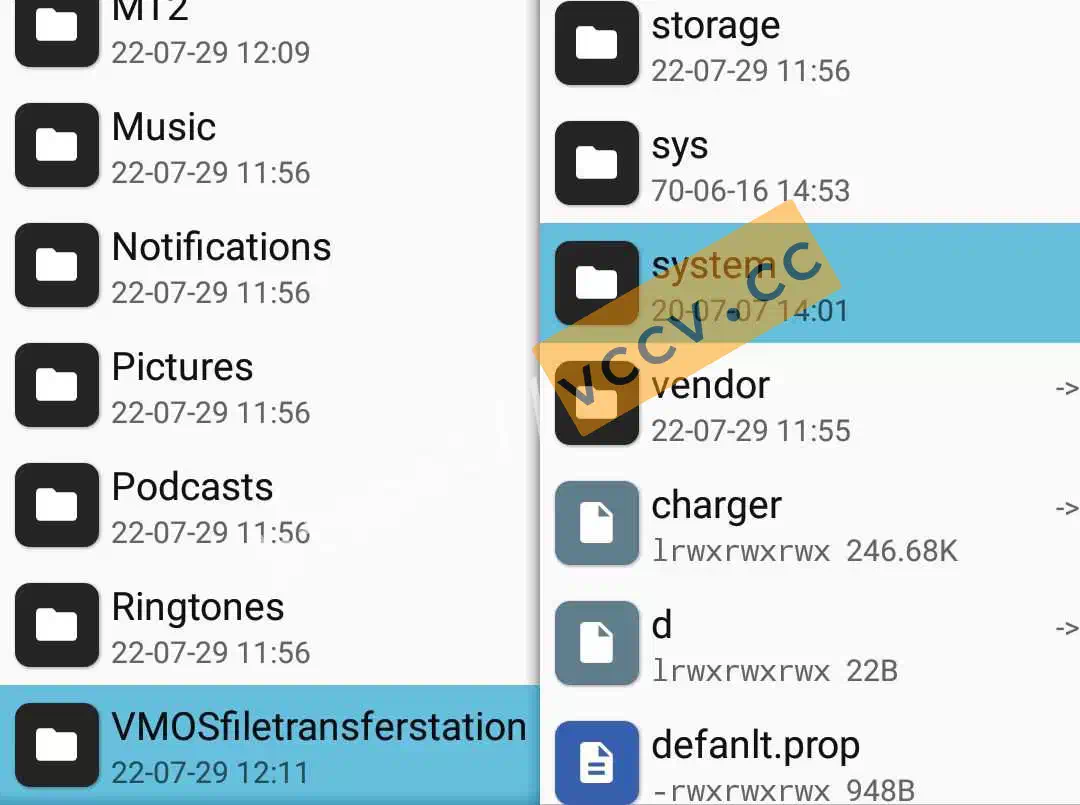
In MT Manager, left pane: VMOSfiletransferstation; right pane: system. If there’s no system folder, root access failed—redo the previous step.
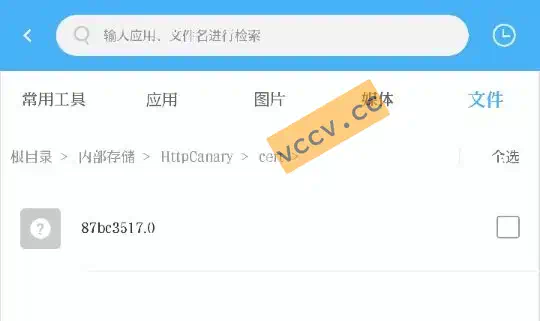
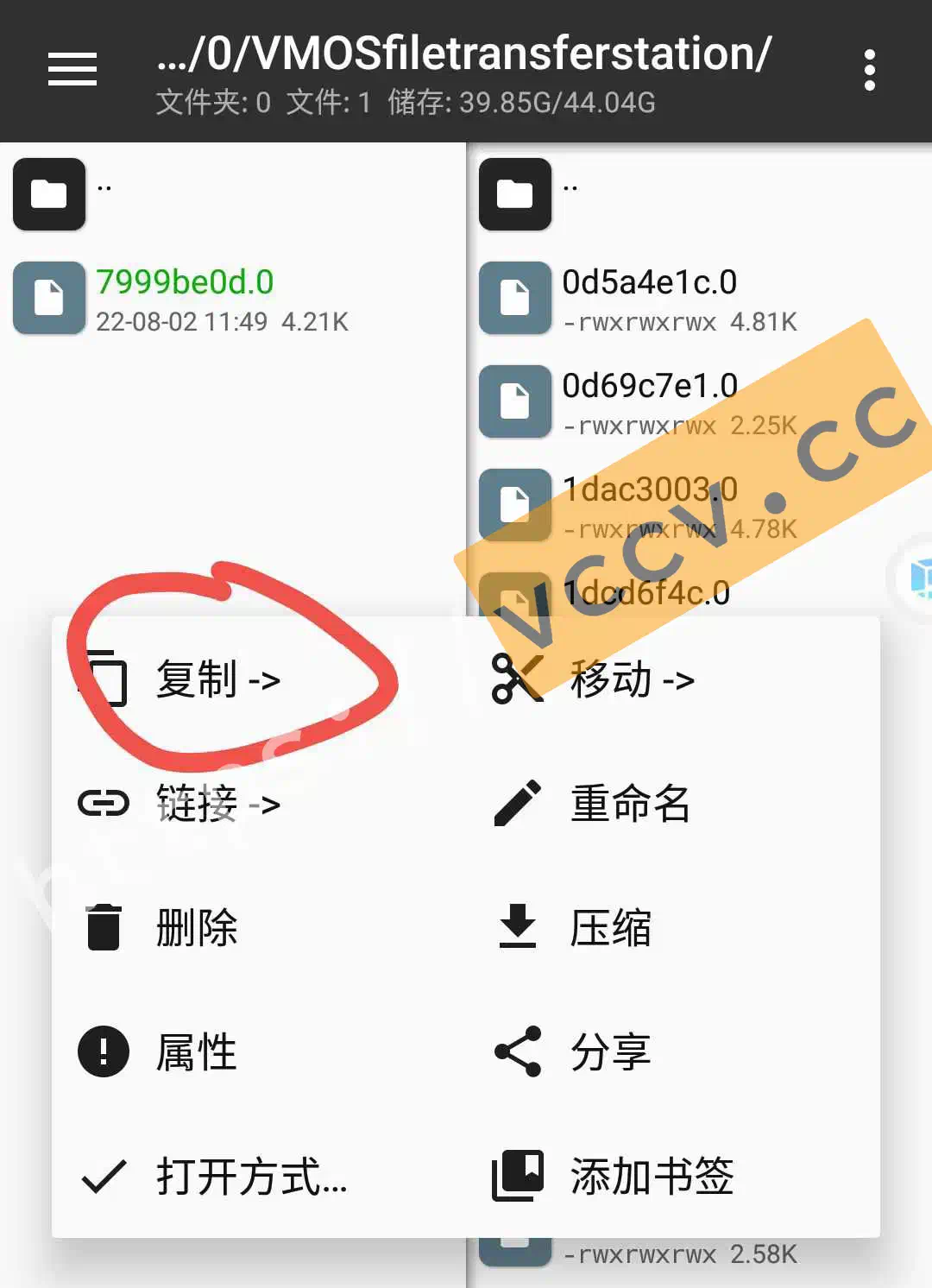
On the right, go to system->etc->security->cacerts. On the left, open VMOSfiletransferstation to find the cert file. Long-press the cert on the left and Copy—it will appear on the right. Different filenames are normal.
Long-press the cert file on the left and tap Copy. It should appear on the right. Filename differences are normal.
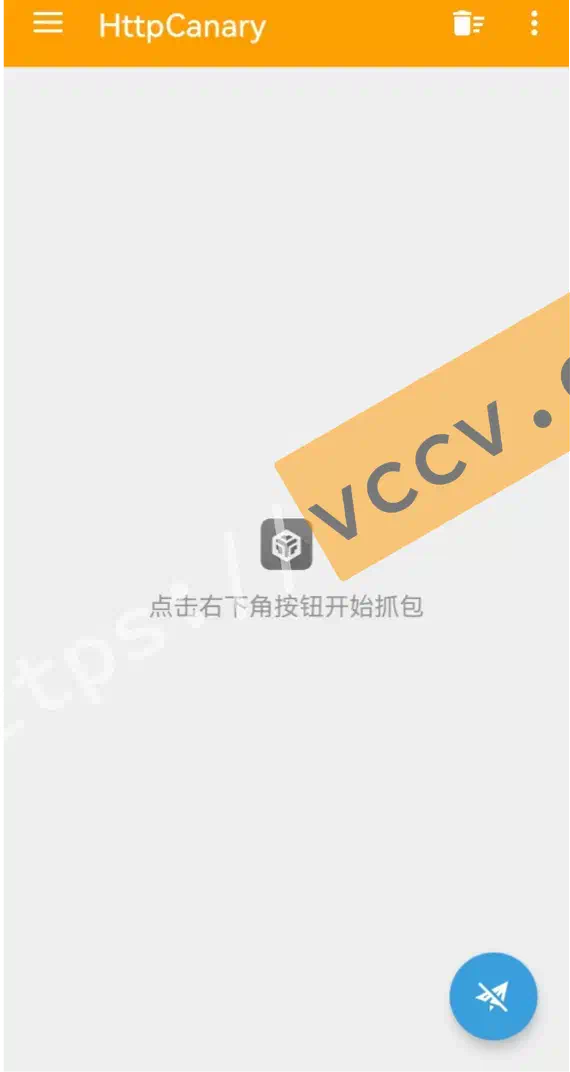
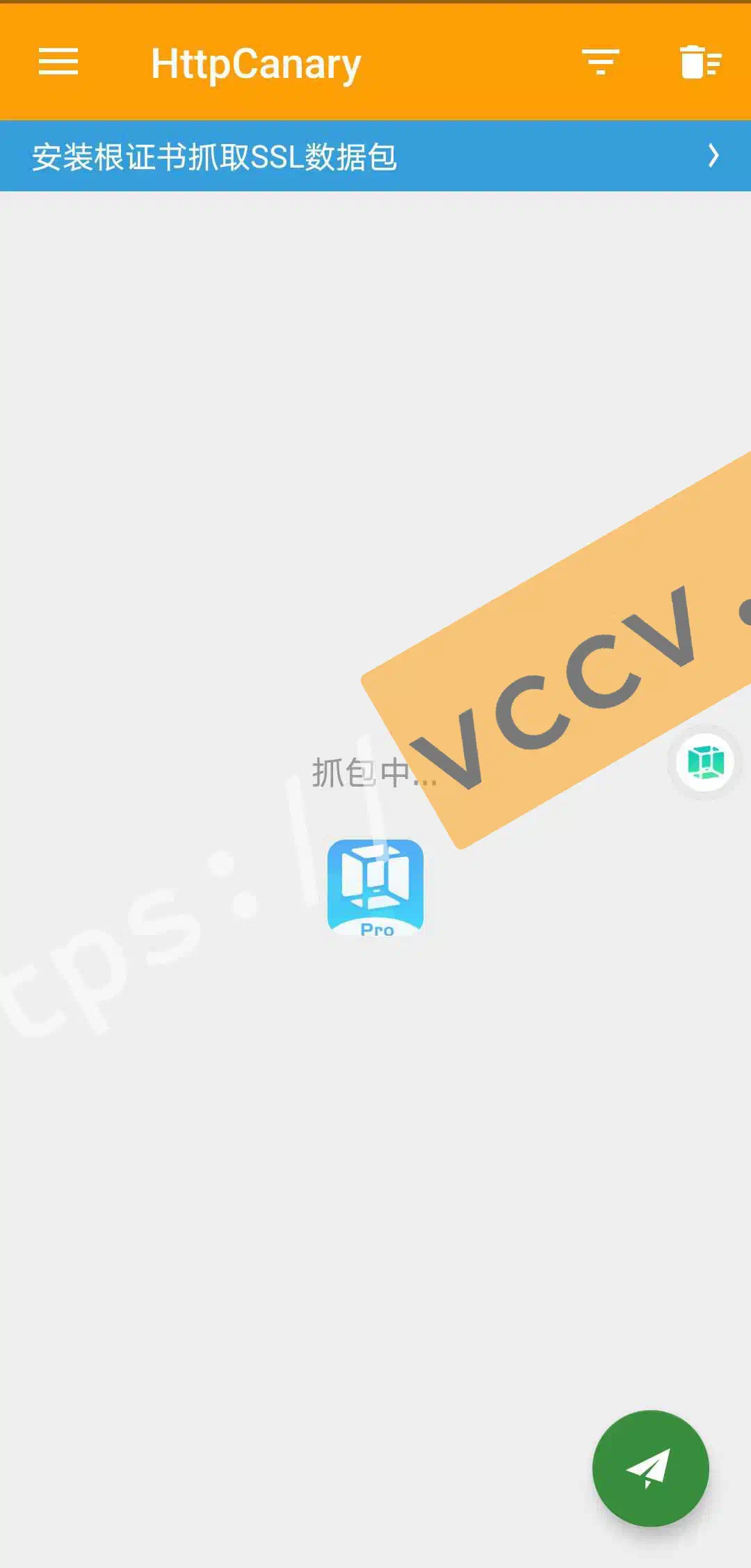
Return to the main page and tap the bottom-right paper plane to start.
If you’re rooted, you can move the cert directly on the real device—no VM needed. The “Install root certificate to capture SSL data” banner is normal for non-root users; ignore it.
Inside the VM, open Kuaishou Speed Edition for the first time (logged out). Log in with phone + SMS. After login, go to Settings -> Account & Security -> WeChat to bind WeChat, or bind during withdrawal.
If login fails or buttons do nothing, kill all related apps and retry, or try later. Another trick: while logged in, close the VM, wait (even 30 minutes), then start HttpCanary, start the VM, and open Kuaishou—the packet may be captured instantly.